
Optimizing terrain resolution
Understand the three resolutions in Orbis3D (working grid, mesh and colour texture) and balance detail, speed and memory for your data and device.
You will learn
- Tell the working grid, the mesh and the texture apart.
- Read the resolutions in the Info and Scene tabs.
- Choose settings for detailed analysis, smooth navigation or large exports.
Prerequisites
Data for this tutorial
Nanda Devi massif, SRTM (real terrain) Download nanda-devi-srtm-1arcsec.tif
- Format
- GeoTIFF, 1 band, Int16, Deflate, tiled
- CRS
- EPSG:4326 (WGS 84, longitude/latitude)
- Content
- Elevations 2285 to 7801 m above the EGM96 geoid; lon 79.7276 to 79.9776, lat 30.2279 to 30.4779
- In Orbis3D
- Data panel ▸ Sample data ▸ Nanda Devi massif, SRTM (real terrain) ▸ Load
- Licence
- SRTM 1 arc-second, NASA/USGS, public domain
Synthetic samples are CC0 1.0; the SRTM sample is public domain. About the datasets
The task
You want the best detail your computer can handle smoothly for the Nanda Devi DEM, and to know which resolution limits which result.
Three resolutions
| Resolution | What it is | Set by | Used for |
|---|---|---|---|
| Working grid | The raster in memory, at most the processing budget | Settings ▸ Processing resolution | Analysis, statistics, colours, exports of rasters |
| Mesh | Vertices of the 3D surface: every cell, or every 2nd, 3rd … | Settings ▸ Mesh detail | Shape of the 3D terrain, picking, GLB/OBJ geometry |
| Texture | The colour image laid on the mesh | Working grid, limited by the GPU (up to 8,192 pixels a side) | Colours in the view, PNG and model textures |
Because colours come from the texture, a coarse mesh still shows fine colour detail; only the shape is simplified.
Steps
- Load Nanda Devi massif and open Info ▸ Processing. It lists the working grid (900 × 900, full resolution), the working cell size, the grid memory (3.1 MB) and the mesh (vertices and triangles).
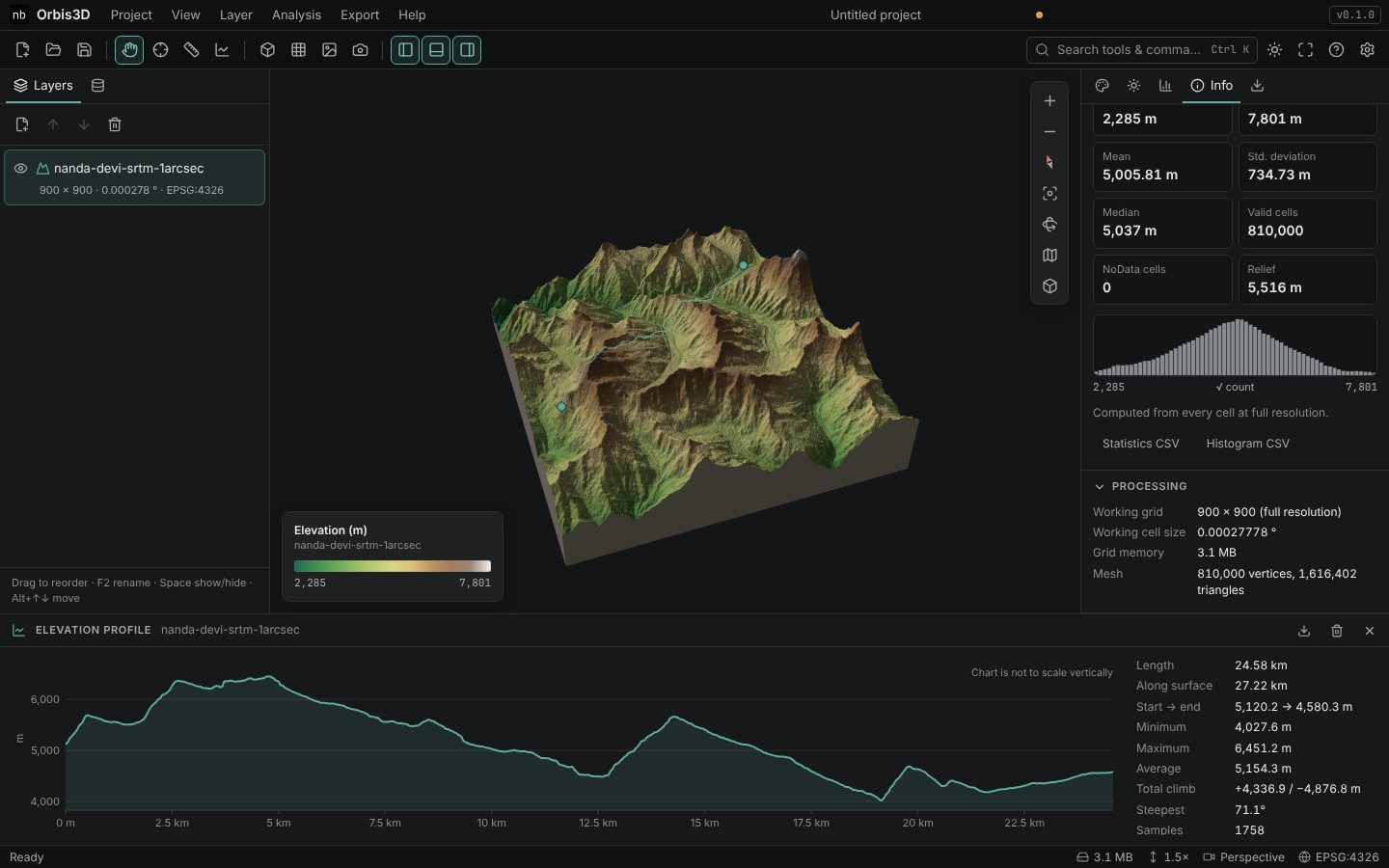
- Open Scene ▸ Mesh detail: vertices, triangles, the sampling step (every 1 working cell here) and the number of levels of detail.
- Show the wireframe (W) and zoom in to see the mesh.
- To change the budgets, open Settings, choose a processing resolution and mesh detail, and click Reload layers with these settings.
Choosing settings
- Detailed analysis of a big raster: raise the processing resolution (9 or 16 million cells) on a computer with enough memory. Mesh detail can stay at 1 million.
- Smooth navigation on a laptop or tablet: lower the mesh detail to 250,000 vertices. Colours keep their detail.
- Large 3D exports: the GLB and OBJ contain the finest mesh level. 1 million vertices make a GLB of roughly 60 MB (positions, normals, texture coordinates and triangles) plus the texture; choose the mesh detail accordingly.
- Levels of detail help when several terrains are in view: distant ones use coarser meshes.
You know which setting limits which result and can trade detail against speed for your device.
Common mistakes
- Raising mesh detail to sharpen colours. Colours depend on the working grid, not the mesh.
- Forgetting to reload. New settings apply to layers opened afterwards, or after Reload layers with these settings.