
Saving and restoring projects
Save your workspace in the browser, export it as a project package or project file, and open it again with all layers and settings.
You will learn
- Save a project in the browser and open it again.
- Export a portable project package.
- Open a project file and supply its data files.
Prerequisites
Data for this tutorial
Sample valley DEM (synthetic) Download orbis3d-sample-valley.tif
- Format
- GeoTIFF, 1 band, Float32, Deflate, tiled
- CRS
- EPSG:32643 (WGS 84 / UTM zone 43N)
- Content
- Elevations 419.5 to 1452.5 m; NoData -9999 in the south-west corner
- In Orbis3D
- Data panel ▸ Sample data ▸ Sample valley DEM (synthetic) ▸ Load
- Licence
- Synthetic, CC0 1.0
Synthetic samples are CC0 1.0; the SRTM sample is public domain. About the datasets
The task
You worked on the valley with two layers, a drape and contours, and want to continue tomorrow, or on another computer.
Three ways to save
| Way | Contains | Where |
|---|---|---|
| Save in this browser (Ctrl+S) | Settings and the data files | This browser's storage on this device |
| Export project package (.zip) | Settings and the data files | A ZIP file you keep anywhere |
| Export project file (.json) | Settings only | A small JSON file; you supply the data when opening |
A project stores the layers (name, files, band, NoData and unit settings), their visibility, opacity, offset and colouring, the slope, hillshade and contour settings, the layer compared in a difference, draped images, the scene settings (exaggeration, rendering, lighting), the camera and the active layer. Analysis results are computed again when you open the project.
Save in the browser
- Choose Project ▸ Save in this browser or press Ctrl+S. A message confirms it. Saving again updates the same project.
- To open it later, choose Project ▸ Projects in this browser… and click Open.
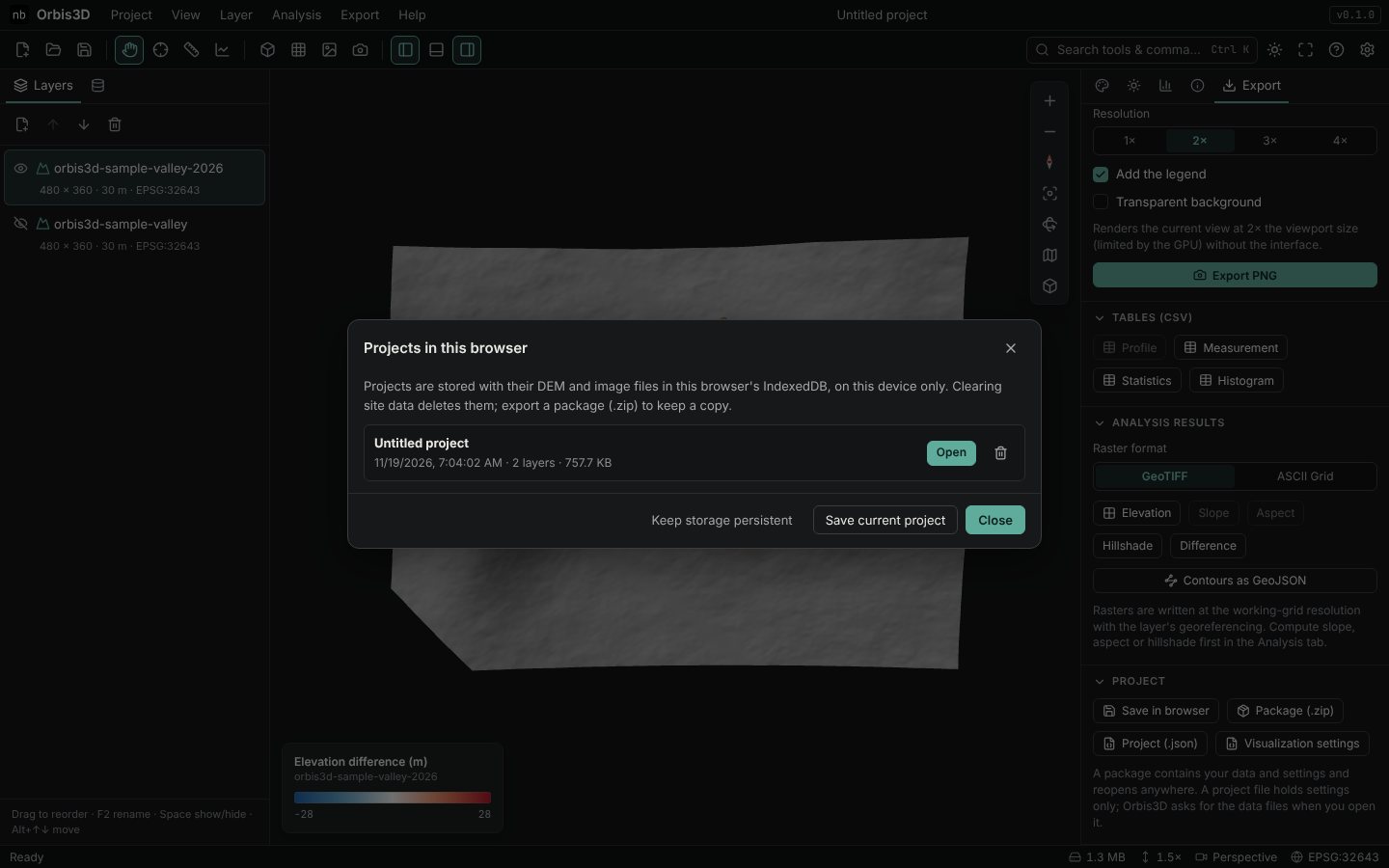
- Click Keep storage persistent to ask the browser not to clear the storage when space runs low. Browsers decide whether to grant it.
Export and open a package
- Choose Project ▸ Export project package (.zip)…. The ZIP contains
project.jsonand adatafolder with every DEM, sidecar and image. - On any computer, drop the ZIP onto Orbis3D or open it with Open files. The project opens as it was.
Open a project file
- Choose Project ▸ Export project file (.json). Keep the data files next to it.
- Drop the JSON file (or open it). If its data files were not opened with it, Orbis3D lists them.
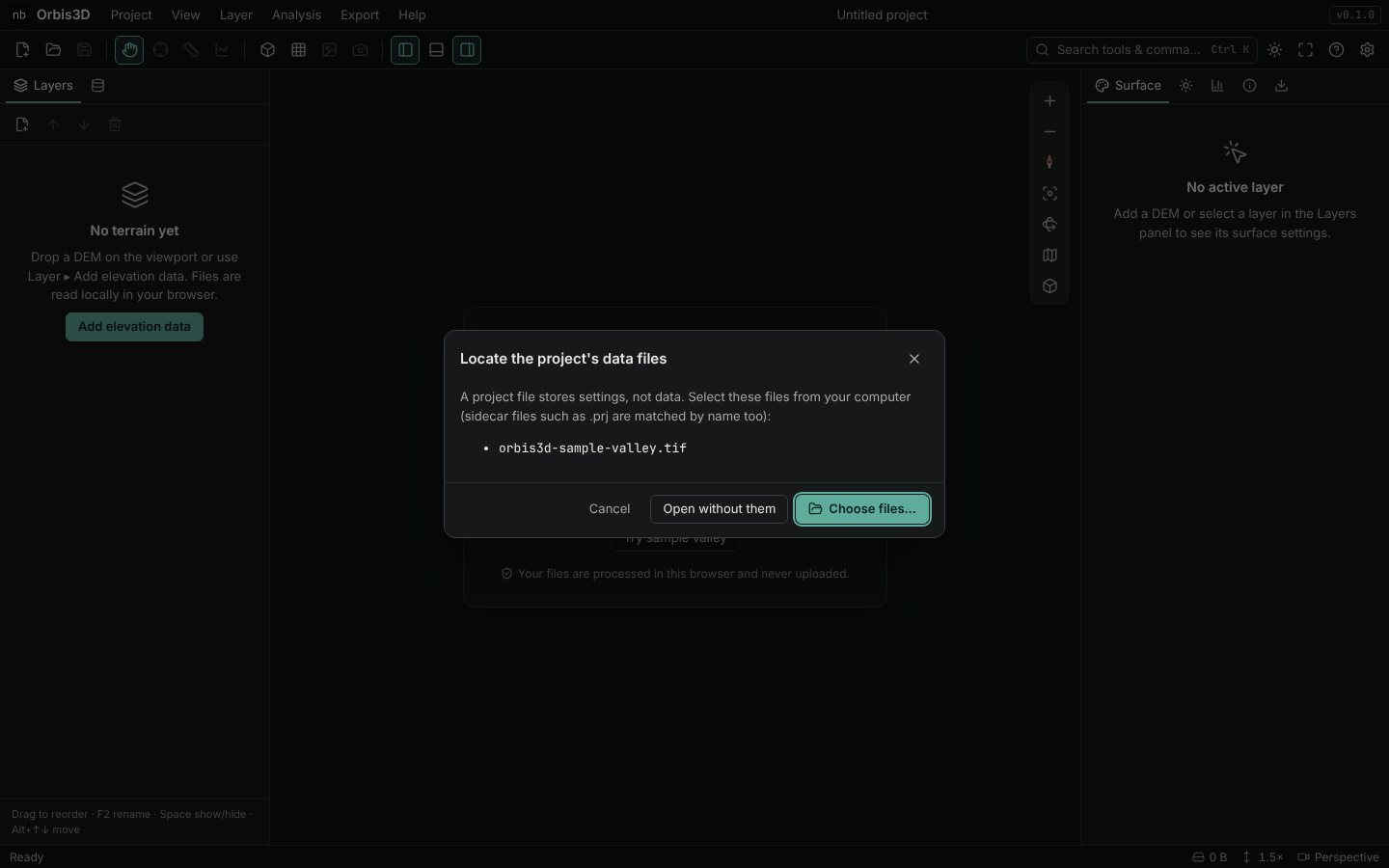
- Click Choose files… and select the files. Or drop the JSON together with its data files in the first place. Open without them opens the layers that are available.
Unsaved changes
An orange dot next to the project name means there are unsaved changes. Orbis3D asks for confirmation if you close the tab with unsaved changes.
## Expected resultThe project reopens with the same layers, colours, drape, contours, exaggeration and camera position.
Common mistakes
- Opening a project file without the data. Select the data files too, or use a package.
- Expecting cloud sync. Saved projects stay in the browser where you saved them.